Data entry is one of the most common tasks performed in Microsoft Excel. Whether you are maintaining employee records, preparing sales reports, managing inventory, or creating an MIS report, the quality of your final result depends heavily on the accuracy of the data entered into the worksheet.
A single incorrect value can affect formulas, reports, charts, PivotTables, and even important business decisions. For example, if a department name is entered as “Human Resource” in one row and “HR” in another, Excel may treat them as two different categories.
This is where Excel Data Validation becomes extremely useful.
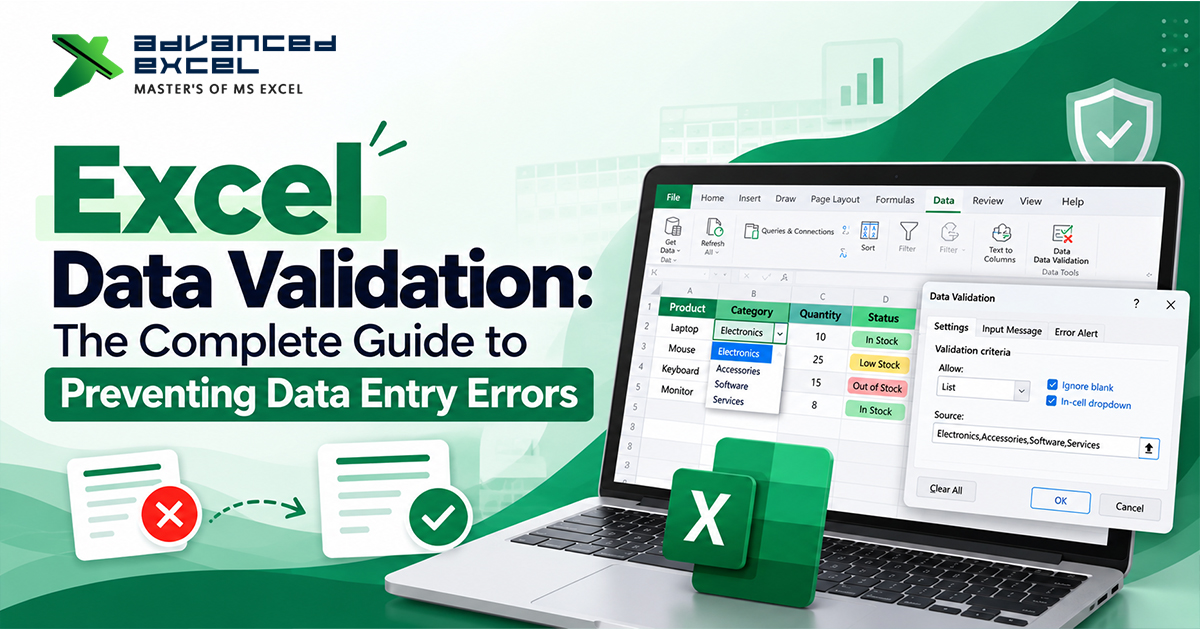
Data Validation allows you to control what users can enter into a cell. You can create drop-down lists, restrict numbers and dates, limit text length, prevent invalid entries, and even create custom validation rules using formulas.
In this guide, we will explore how Excel Data Validation works and how you can use it to create cleaner, more accurate, and more reliable spreadsheets. If you are building your overall Excel skills, you can also explore this guide to discover your Excel skill level.
What Is Data Validation in Excel?
Excel Data Validation is a feature that allows you to set rules for the type of information that can be entered into a cell.
Instead of allowing users to type anything they want, you can define acceptable values.
For example, suppose you have an employee database with a column called “Department.” Without validation, someone might enter:
- Sales
- sales
- SALES
- Sale
- Sales Department
Although these entries may refer to the same department, Excel can treat them as different values.
With Data Validation, you can create a predefined list such as:
- Sales
- Finance
- HR
- Marketing
- Operations
Users can then select the appropriate department from a drop-down list.
This simple technique can significantly improve data consistency.
Why Is Excel Data Validation Important?
Data Validation is particularly useful when multiple people work on the same Excel file or when a spreadsheet is used regularly for data collection.
Some major benefits include:
1. Reduces Data Entry Errors
Users are less likely to enter incorrect values when Excel provides predefined options or restrictions.
2. Improves Data Consistency
Standardized entries make filtering, sorting, PivotTables, and reporting much easier.
3. Saves Time
Instead of repeatedly typing the same information, users can select values from a drop-down list.
4. Makes Reports More Reliable
Clean input data leads to more accurate calculations and analysis.
5. Makes Excel Sheets Easier to Use
A well-designed spreadsheet guides users and reduces confusion about what information needs to be entered.
How to Create a Drop-Down List in Excel
Creating a drop-down list is one of the most common uses of Data Validation. For a dedicated step-by-step guide, see How to Add a Drop-Down List in Excel.
Suppose you want users to select an employee’s department.
Step 1: Select the Cells
Select the cells where you want the drop-down list.
For example:
B2:B100
Step 2: Open Data Validation
Go to:
Data ? Data Validation
The Data Validation dialog box will open.
Step 3: Choose List
Under the Allow option, select:
List
You can then enter the allowed values in the Source box.
For example:
Sales,Finance,HR,Marketing,Operations
Step 4: Click OK
The selected cells will now contain a drop-down arrow.
Users can select a value instead of typing it manually.
Using a Cell Range for a Drop-Down List
Instead of typing values directly into the Source box, you can store your list on the worksheet.
For example:
| A |
| Sales |
| Finance |
| HR |
| Marketing |
| Operations |
You can then use this range as the source for your Data Validation list.
This approach is better for larger or frequently updated lists because you can change the source values without modifying every validation rule.
Restricting Numbers in Excel
Data Validation is not limited to drop-down lists.
You can also control numerical entries.
For example, suppose you want users to enter an employee’s age between 18 and 60.
Go to:
Data ? Data Validation ? Allow: Whole Number
Then select:
between
Set:
Minimum: 18
Maximum: 60
Excel will reject values outside this range.
This is useful for:
- Age
- Quantity
- Employee count
- Product units
- Ratings
- Scores
- Percentage values
Restricting Dates
You can also control the dates users are allowed to enter.
For example, if you are preparing an attendance or sales tracking sheet, you may want users to enter dates only within a particular period.
Select:
Data ? Data Validation ? Allow: Date
Then specify the required date range.
This can help prevent mistakes such as entering a future date when only historical records are required.
Restricting Text Length
Sometimes you may need to limit the number of characters that can be entered into a cell.
For example, if an employee ID must contain no more than 10 characters, you can use:
Data ? Data Validation ? Allow: Text Length
You can then specify the required condition.
This can be useful for:
- Employee IDs
- Product codes
- Short reference numbers
- Customer codes
- Postal codes
Creating Custom Data Validation Rules
One of the most powerful features of Excel Data Validation is the ability to create custom rules using formulas.
For example, suppose you want to prevent duplicate employee IDs.
You can select the employee ID range and use a formula such as:
=COUNTIF(A2:A100,A2)=1
This formula checks whether the value appears only once within the specified range.
Custom validation formulas can be useful when standard Data Validation options are not enough.
Creating Dependent Drop-Down Lists
A dependent drop-down list changes its available options based on another selection.
For example:
Country ? State ? City
If a user selects “India” as the country, the next drop-down could display Indian states. If the user selects “USA,” the next list could show U.S. states.
Dependent drop-down lists are useful for:
- Location databases
- Product categories
- Department and employee lists
- Country and state selection
- Service and sub-service forms
They can make Excel-based forms much more structured and user-friendly. These techniques can also be useful when creating interactive Excel dashboards with filters and user selections.
How to Display an Error Message
Excel allows you to show a custom message when a user enters an invalid value.
Inside the Data Validation window, open the:
Error Alert tab.
You can define:
Title: Invalid Entry
Error Message: Please select a valid department from the drop-down list.
This gives users clear instructions instead of simply telling them that their entry is invalid.
Using Input Messages to Guide Users
Another useful feature is the Input Message option.
When a user selects a validated cell, Excel can display a small instruction.
For example:
Title: Employee ID
Input Message: Enter the unique employee ID assigned to the employee.
This is especially helpful when a worksheet is used by multiple people.
Common Data Validation Mistakes
Although Data Validation is easy to use, there are a few mistakes that can reduce its effectiveness.
Using Manually Typed Lists Everywhere
If the same list is used across many worksheets, maintaining separate manually typed lists can become difficult.
Using a centralized source range is generally easier to manage.
Not Testing the Validation Rules
Always test your rules with both valid and invalid values before sharing the workbook.
Ignoring Blank Values
Depending on your requirements, you may need to decide whether blank cells should be allowed.
Using Inconsistent Source Lists
If one sheet contains “Marketing” and another contains “Marketing Department,” your reports may still have inconsistent categories.
Forgetting to Protect Important Worksheets
Data Validation controls input, but it does not necessarily prevent users from changing the worksheet structure or validation settings.
For important templates, consider using worksheet protection where appropriate.
Best Practices for Excel Data Validation
To get the most out of Data Validation, follow these practices:
- Use drop-down lists for repetitive categories.
- Keep source lists organized and easy to maintain.
- Use meaningful error messages.
- Test validation rules before distributing the workbook.
- Use custom formulas when standard rules are not sufficient.
- Keep categories consistent across the workbook.
- Avoid unnecessary validation rules that make the sheet difficult to use.
- Protect important formulas and worksheet structures when required.
Real-World Example: Employee Data Entry Form
Consider an employee database containing:
| Employee Name | Department | Employment Type | Joining Date | Age |
| Rahul Sharma | HR | Full Time | 10-Jan-2025 | 29 |
| Neha Singh | Finance | Full Time | 15-Feb-2025 | 31 |
You can apply Data Validation to:
- Department ? Drop-down list
- Employment Type ? Drop-down list
- Joining Date ? Date restriction
- Age ? Whole number between 18 and 60
- Employee ID ? Duplicate prevention
The result is a much more controlled data entry system.
Data Validation vs Conditional Formatting
Data Validation and Conditional Formatting are sometimes confused, but they serve different purposes.
Data Validation controls what users can enter.
Conditional Formatting changes the appearance of cells based on their values.
For example:
- Data Validation can prevent an invalid department from being entered.
- Conditional Formatting can highlight an overdue date in red.
Using both features together can make an Excel workbook much more effective. Data Validation is also one of the core skills covered when developing broader Advanced Excel skills.
Frequently Asked Questions
What is Data Validation in Excel?
Data Validation is an Excel feature that controls the type of data users can enter into a cell.
How do I create a drop-down list in Excel?
Select the required cells, go to Data ? Data Validation, choose List, and provide the values or source range.
Can Excel Data Validation prevent duplicate entries?
Yes. Custom formulas can be used with Data Validation to restrict duplicate values in a range.
Can I use formulas in Data Validation?
Yes. Excel allows custom formulas for advanced validation requirements.
Can Data Validation restrict dates?
Yes. You can specify acceptable dates or date ranges using the Date validation option.
Does Data Validation improve Excel reporting?
Yes. By keeping input data consistent and accurate, Data Validation can improve the reliability of formulas, PivotTables, charts, and reports.
Conclusion
Excel Data Validation is a simple feature with a significant impact on spreadsheet accuracy. It helps control data entry, standardize information, reduce mistakes, and create more reliable Excel reports.
Whether you are creating an employee database, sales tracker, inventory sheet, attendance system, or MIS report, using Data Validation can make your workbook easier to manage and safer for users.
Once you become comfortable with basic drop-down lists, number and date restrictions, and custom formulas, you can use Data Validation to build much more professional Excel-based forms and templates.
For anyone working regularly with Excel, learning Data Validation is a small investment that can prevent a large number of data-quality problems. If you want structured practical training, you can explore Advanced Excel & VBA Macros Online Classes.