
In today’s data-driven world, knowing how to work with data is no longer optional. Businesses, analysts, managers, and even freshers are expected to understand data and turn it into meaningful insights. This is where Power BI plays a very important role.
Power BI is one of the most powerful and widely used data visualization and business intelligence tools by Microsoft. Whether you are starting from zero or already working with data, learning Power BI can open many career opportunities in 2026 and beyond.
This complete Power BI tutorial is designed for beginners to advanced users, so you can understand concepts step by step without feeling confused or overwhelmed.
What is Power BI?
Power BI is a business intelligence and data visualization tool developed by Microsoft. It helps users collect data from different sources, clean it, analyze it, and create interactive reports and dashboards.
In simple words, Power BI helps you:
-
Understand data easily
-
Create charts, reports, and dashboards
-
Share insights with teams and decision-makers
Power BI is utilized by companies of all sizes, from startups to large enterprises, due to its flexibility, power, and ease of use.
Read More: What is Power BI? Components and Benefits Explained
Why Learn Power BI in 2026?
Power BI demand is growing every year, and in 2026, it will be even more valuable because:
-
Companies rely heavily on data for decisions
-
Excel alone is not enough for large datasets
-
Power BI works smoothly with Excel, SQL, Azure, and cloud data
-
Job roles like Data Analyst, BI Developer, and Business Analyst require Power BI skills
If you already know Excel, learning Power BI becomes even easier and faster.
Power BI Components Explained
Before jumping into hands-on learning, it is important to understand the main components of Power BI.
1. Power BI Desktop
This is the main tool used to create reports and dashboards. It is free and installed on your system.
2. Power BI Service
This is the cloud version where reports are published and shared with others.
3. Power BI Mobile
Used to view dashboards and reports on mobile devices.
4. Power BI Gateway
Helps connect on-premises data sources with Power BI Service.
Power BI for Beginners: Step-by-Step Learning
Step 1: Installing Power BI Desktop
Power BI Desktop can be downloaded from Microsoft’s official website. Once installed, you can start creating reports immediately.
Step 2: Understanding the Power BI Interface
Key sections you will see:
-
Report View
-
Data View
-
Model View
-
Fields Pane
-
Visualizations Pane
At first, it may look complex, but after a few hours of practice, it becomes very comfortable.
Connecting Data Sources in Power BI
Power BI supports a wide range of data sources, such as:
-
Excel files
-
CSV and Text files
-
SQL Server
-
MySQL
-
SharePoint
-
Web data
-
Cloud platforms like Azure
You can connect multiple data sources in one report, which is very useful for business reporting.
Data Cleaning Using Power Query
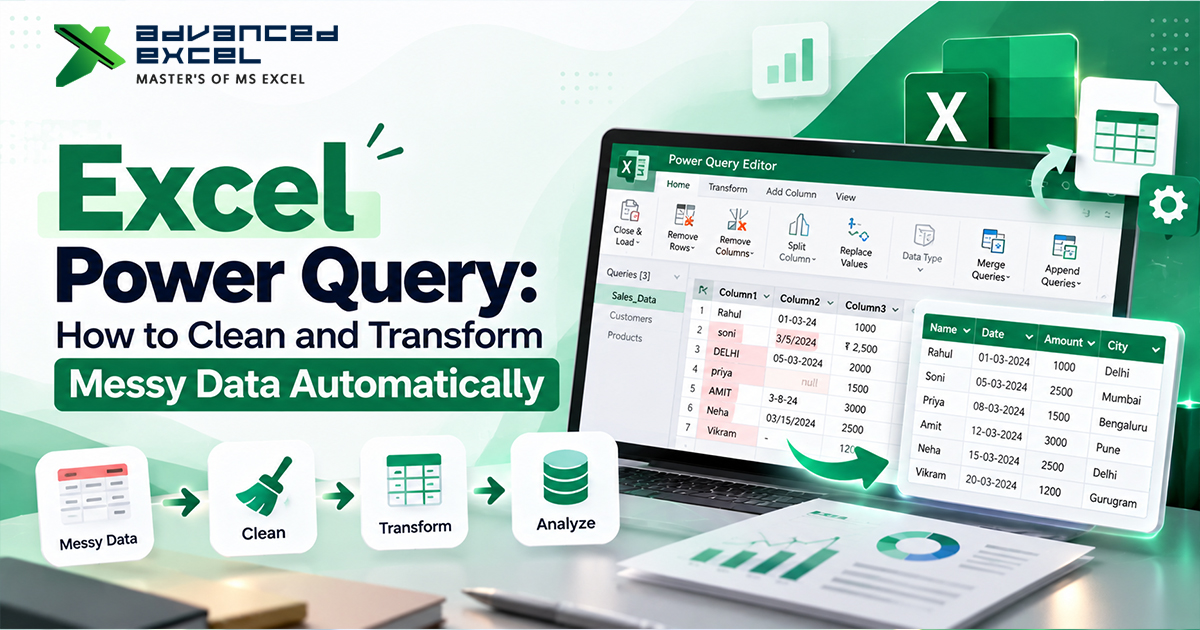
Real-world data is never clean. Power BI uses Power Query Editor to clean and transform data.
Common tasks in Power Query:
-
Removing duplicate values
-
Handling missing data
-
Renaming columns
-
Changing data types
-
Splitting and merging columns
Power Query works with a step-based approach, so every transformation is recorded and can be edited later.
Data Modeling in Power BI
Data modeling is one of the most important skills in Power BI.
Here you:
-
Create relationships between tables
-
Use primary and foreign keys
-
Build a star or snowflake schema
A good data model improves report performance and accuracy.
Introduction to DAX (Data Analysis Expressions)
DAX is the formula language used in Power BI. It is similar to Excel formulas but more powerful.
Common DAX Functions:
-
SUM
-
AVERAGE
-
COUNT
-
CALCULATE
-
FILTER
-
IF
Example:
DAX is used to create:
-
Calculated columns
-
Measures
-
KPIs
At first, DAX may feel difficult, but with practice, it becomes logical.
Creating Visualizations in Power BI
Power BI offers many types of visuals:
-
Bar and Column Charts
-
Line Charts
-
Pie and Donut Charts
-
Tables and Matrices
-
Cards and KPIs
-
Maps
-
Slicers
Good visualization helps users understand data faster and make better decisions.
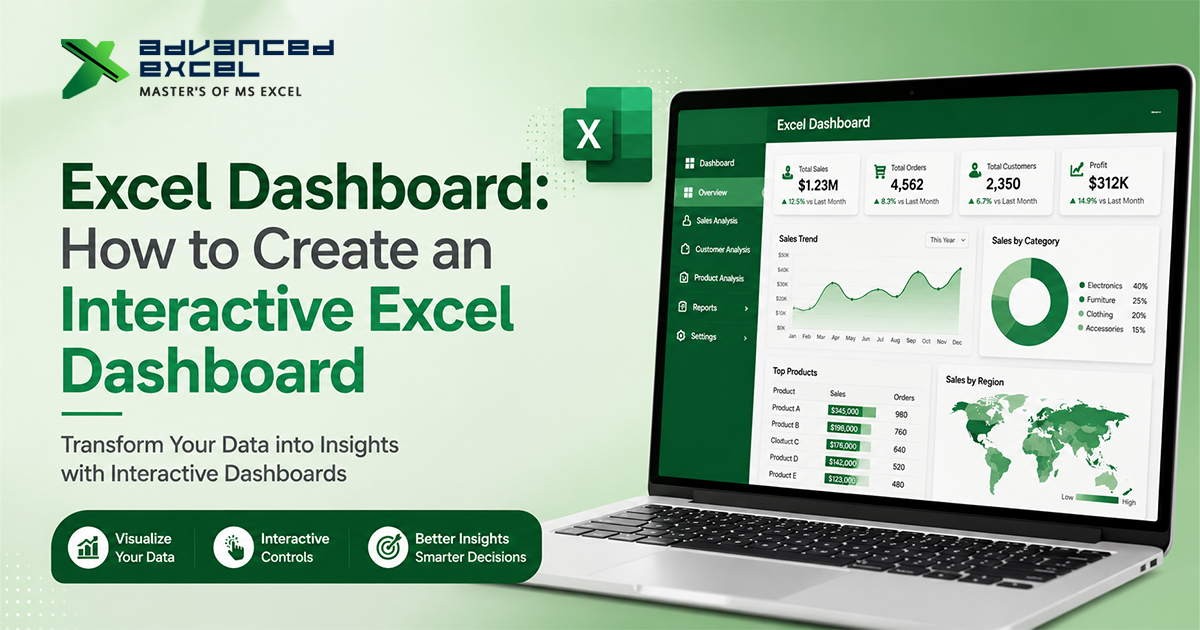
Designing Interactive Dashboards
A dashboard should not only look good but also be useful.
Best practices:
-
Keep it simple
-
Use consistent colors
-
Avoid too many visuals
-
Use slicers for filtering
-
Focus on key metrics
Interactive dashboards allow users to explore data instead of just viewing static reports.
Read Also: What Is Power BI Used For? A Complete Guide
Power BI for Intermediate Users
Once the basics are clear, intermediate users can focus on:
-
Advanced DAX functions
-
Time intelligence (YTD, MTD, QTD)
-
Row-level security (RLS)
-
Drill-through and tooltips
-
Custom visuals
These features help in building professional-level reports.
Advanced Power BI Concepts
Advanced DAX Optimization
Learning how to optimize DAX formulas for performance is important when working with large datasets.
Performance Analyzer
Used to check which visuals or queries are slowing down reports.
Incremental Refresh
Helps refresh only new data instead of the full dataset.
AI Visuals
Power BI includes AI features like:
-
Key Influencers
-
Decomposition Tree
-
Q&A Visual
These tools help uncover insights automatically.
Power BI vs Excel: Do You Need Both?
Yes, Power BI and Excel work best together.
Excel is great for:
-
Small datasets
-
Quick analysis
-
Manual work
Power BI is better for:
-
Large datasets
-
Automated dashboards
-
Sharing reports
-
Advanced analytics
Many professionals begin with Excel and transition to Power BI for improved scalability.
Career Opportunities After Learning Power BI
After mastering Power BI, you can apply for roles like:
-
Power BI Developer
-
Data Analyst
-
Business Intelligence Analyst
-
Reporting Analyst
-
MIS Executive
Industries using Power BI include finance, healthcare, IT, retail, marketing, and more.
How Long Does It Take to Learn Power BI?
-
Basics: 1–2 weeks
-
Intermediate level: 1–2 months
-
Advanced concepts: 3–4 months
Time depends on practice and real-world project exposure.
Final Thoughts
Power BI is no longer just a tool; it is a career skill. From beginners to advanced professionals, everyone can benefit from learning Power BI in a structured way. If you are serious about data analytics in 2026, Power BI should be on your learning list. Start with the basics, practice regularly, and slowly move to advanced topics. With time, you’ll be able to create dashboards that truly tell a story through data.
If you’re looking to upskill, we also provide structured Power BI training with real project exposure.