Excel is not just about rows, columns, and formulas anymore.
One of the biggest reasons people use Excel for reporting and data analysis is because of charts.
A good chart can explain data in seconds.
A bad chart can confuse everyone in the room.
And honestly, many Excel users know formulas… but still struggle with choosing the right chart.
That’s why understanding different chart types is important.
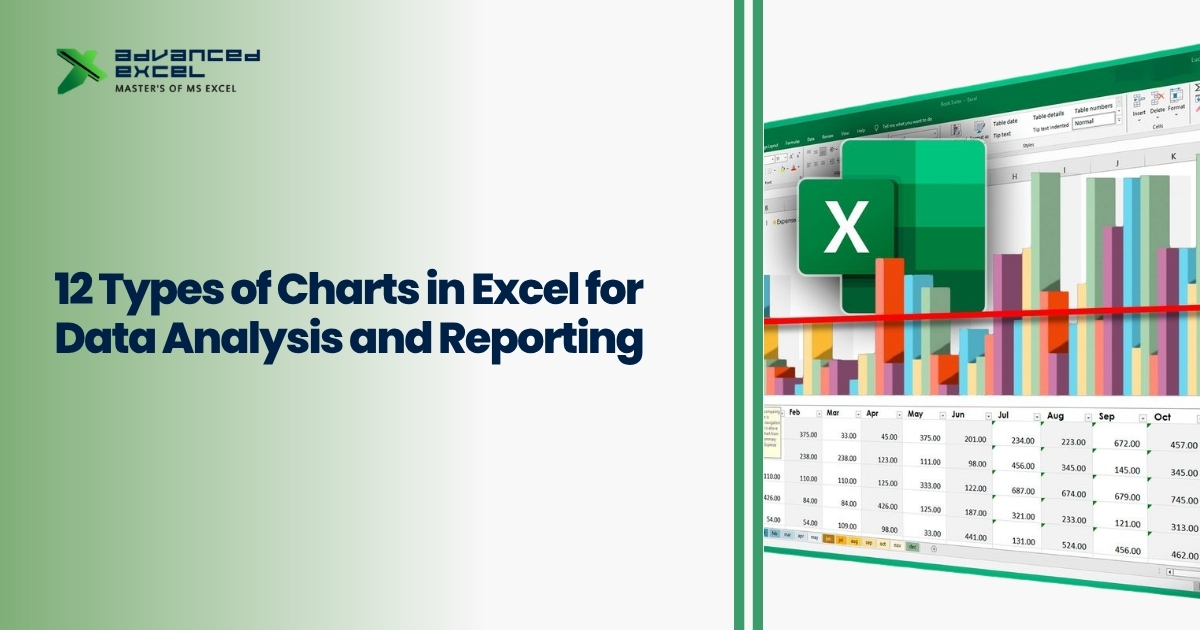
In this guide, we’ll understand the 12 most useful types of charts in Excel, when to use them, and how they help in reporting and data analysis.
Why Charts Are Important in Excel
Raw data is difficult to understand quickly.
But charts help you:
- Visualize trends
- Compare performance
- Identify patterns
- Present reports professionally
- Make data easier to understand
This is why charts are widely used in:
- Business reporting
- Sales analysis
- Finance dashboards
- HR reports
- Marketing analytics
1. Column Chart
Column charts are probably the most commonly used charts in Excel.
They display data using vertical bars.
Best Used For:
- Comparing categories
- Monthly sales reports
- Performance comparison
Example:
Comparing sales of different products.
? Very beginner-friendly and easy to understand.
2. Bar Chart
Bar charts are similar to column charts, but the bars are horizontal instead of vertical.
Best Used For:
- Comparing long category names
- Ranking data
- Survey results
Example:
Comparing employee performance across departments.
3. Line Chart
Line charts are mainly used to show trends over time.
Best Used For:
- Growth analysis
- Monthly trends
- Revenue tracking
Example:
Website traffic growth over 12 months.
? One of the best charts for trend analysis.
4. Pie Chart
Pie charts show percentage distribution.
Each slice represents a portion of the total.
Best Used For:
- Percentage contribution
- Market share analysis
- Budget distribution
Example:
Department-wise expense distribution.
? Works best when categories are limited.
5. Doughnut Chart
Doughnut charts are similar to pie charts, but with a hole in the center.
Best Used For:
- Modern dashboard reporting
- Percentage-based data visualization
Example:
Sales contribution by region.
6. Area Chart
Area charts are like line charts, but the area below the line is filled with color.
Best Used For:
- Showing volume trends
- Comparing quantities over time
Example:
Yearly revenue growth analysis.
7. Scatter Chart (XY Chart)
Scatter charts help analyze relationships between two variables.
Best Used For:
- Correlation analysis
- Scientific or statistical data
Example:
Advertising spend vs sales revenue.
? Very useful in advanced data analysis.
8. Bubble Chart
Bubble charts are an advanced version of scatter charts.
They use bubbles of different sizes to represent additional data values.
Best Used For:
- Multi-variable analysis
- Business performance comparison
Example:
Profit, sales, and market share analysis together.
9. Combo Chart
Combo charts combine two different chart types into one chart.
Usually:
- Column + Line chart
Best Used For:
- Comparing different datasets together
- KPI dashboards
Example:
Sales revenue and profit margin in one report.
? Very popular in management reporting.
10. Radar Chart
Radar charts display data in a circular format.
Best Used For:
- Skill comparison
- Performance evaluation
Example:
Employee skill assessment report.
11. Stock Chart
Stock charts are mainly used for financial data.
Best Used For:
- Stock market analysis
- Financial reporting
Example:
Daily stock price fluctuations.
12. Treemap Chart
Treemap charts display hierarchical data using rectangles.
Best Used For:
- Large data categorization
- Business segmentation analysis
Example:
Revenue contribution by product categories.
? Very useful for dashboard reporting.
How to Choose the Right Chart in Excel
Choosing the correct chart is very important.
Here’s a simple rule:
| Goal | Best Chart |
|---|---|
| Compare categories | Column / Bar |
| Show trends | Line / Area |
| Show percentages | Pie / Doughnut |
| Analyze relationships | Scatter / Bubble |
| Dashboard reporting | Combo / Treemap |
Common Mistakes People Make While Using Charts
Many users create charts… but not effective ones.
Some common mistakes:
- Using too many colors
- Selecting the wrong chart type
- Adding unnecessary data
- Overcrowding charts
- Using 3D charts excessively
Simple and clean charts usually work best.
Tips for Better Excel Reporting
Here are some practical tips:
- Keep charts simple
- Use proper titles
- Highlight important data
- Avoid too much formatting
- Use dashboards for better presentation
Good visualization improves decision-making.
Why Excel Charts Are Important for Data Analysis
Charts help transform raw data into meaningful insights.
Instead of reading hundreds of rows, users can quickly:
- Spot trends
- Compare numbers
- Understand performance
- Make business decisions faster
This is why Excel charts are widely used in reporting and analytics jobs.
Excel vs Power BI for Visualization
Excel charts are excellent for quick reporting.
But for larger dashboards and real-time analytics, many professionals also use Power BI.
Still, Excel remains one of the most important tools for data analysis and reporting.
Final Thoughts
Understanding different types of charts in Excel is an essential skill for anyone working with data.
The right chart makes reports more professional, easier to understand, and more impactful.
Whether you are creating sales reports, dashboards, or business presentations, choosing the correct chart helps communicate insights clearly.
Advanced Excel provides practical Excel and data analysis training designed to help learners build real-world reporting and visualization skills confidently.