
If you’ve ever worked with large sets of data in Excel sheets, reports, or CRMs, you know how messy it can get. Numbers everywhere, graphs not making sense, managers asking for insights you can’t see clearly. That’s where Power BI comes in.
In simple words, Power BI is a business intelligence and data visualization tool developed by Microsoft. It helps you connect different data sources, clean and transform data, and turn it into interactive dashboards and reports that actually make sense to everyone — not just data experts.
But let’s not make it sound too technical. Let’s break it down like you’re hearing it from someone who uses Power BI every day at work.
What Exactly Is Power BI?
Power BI stands for Power Business Intelligence, basically a tool that turns boring data into something meaningful. Think of it as an upgraded version of Excel’s charts, but way more powerful.
You can use Power BI to pull data from:
- Excel files
- Databases (like SQL Server)
- Cloud services (like Azure, Google Analytics, Salesforce)
- Even APIs and web sources
Then you clean, transform, and visualize it — all in one platform.
The best part? You don’t need to be a coder or data scientist to use it. Once you get the hang of the interface, building dashboards becomes almost fun (yeah, that’s coming from someone who used to hate spreadsheets).
Why Businesses Use Power BI
Now, here’s the real question: what is Power BI actually used for? What problems does it solve?
Let’s be real, businesses today are overloaded with data. Every click, every sale, every customer interaction gets stored somewhere. But if that data just sits in databases, it’s useless. Power BI helps bring that data to life.
Here’s what companies use Power BI for:
1. Data Visualization
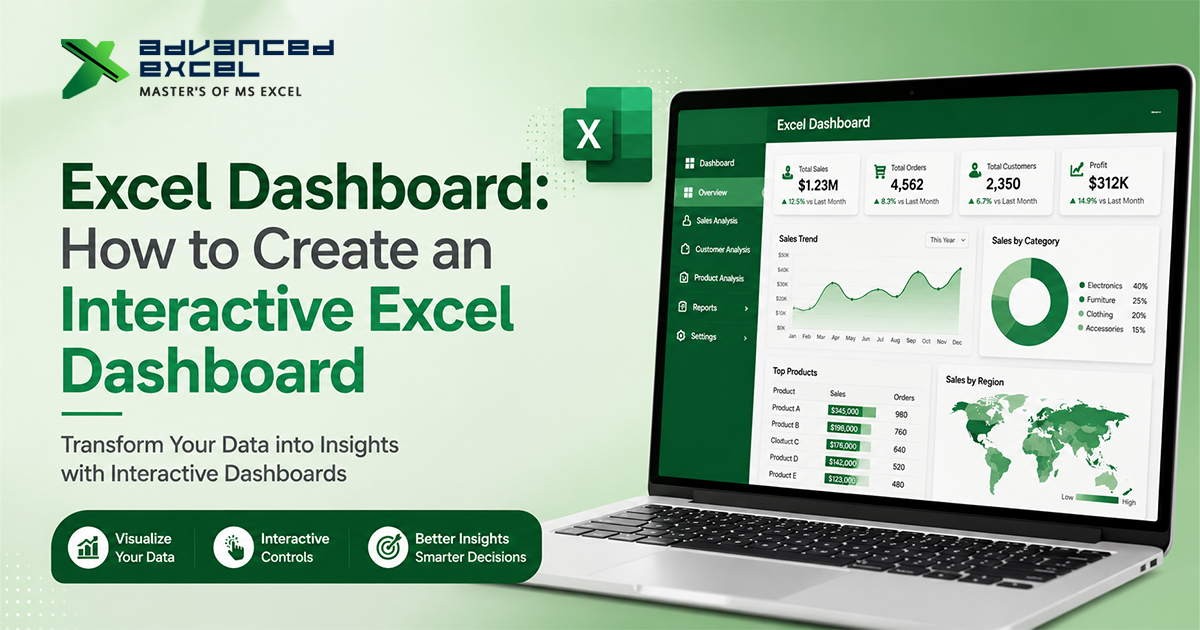
Power BI lets you create beautiful, interactive dashboards. You can visualize trends, sales numbers, or performance metrics using charts, graphs, and maps.
Instead of going through 20 Excel sheets, your manager can open one Power BI dashboard and see everything: revenue by region, top-performing products, customer trends all in one view.
2. Real-Time Reporting
Power BI can pull live data from cloud-based systems, so your dashboards update automatically.
Let’s say you run an e-commerce store, you can track sales performance in real-time without manually refreshing anything. That’s a huge time-saver.
3. Data Analysis and Insights
With Power BI’s DAX (Data Analysis Expressions) language, you can perform advanced calculations and get deep insights.
For example:
- “Which product category gives the highest profit margin?”
- “What’s the sales trend for the last 12 months?”
- “Which region is underperforming this quarter?”
You can get all these answers visually, without writing SQL queries.
4. Collaboration and Sharing
Another big reason people love Power BI you can share reports easily.
Once your dashboard is ready, you can publish it to the Power BI Service, and others in your team can access it on the web or mobile. Everyone stays on the same page, no more sending 10 Excel versions over email.
5. Integration with Microsoft Tools
If your company already uses Microsoft tools like Excel, Teams, or Azure, Power BI fits right in. You can export reports to Excel, embed dashboards in Teams, or pull data directly from Azure databases.
That’s why it’s a favorite choice for organizations already in the Microsoft ecosystem.
Read Also: How AI-Powered Analytics in Power BI Enhances Business Decisions in 2025
Key Components of Power BI
To understand Power BI properly, you should know its main parts:
1. Power BI Desktop
It’s a free application for your PC where you create reports and dashboards.
Most analysts start here — they connect data, build visuals, and design everything.
2. Power BI Service
This is the cloud platform (available at app.powerbi.com). You publish your reports here, share them with others, and even schedule automatic data refreshes.
3. Power BI Mobile App
Available for Android and iOS, this lets users view dashboards and reports on the go — handy for managers and decision-makers.
4. Power BI Gateway
If your data lives on a local server (not in the cloud), the gateway helps connect it securely to Power BI.
5. Power BI Report Server
For companies that don’t want cloud storage for privacy reasons, Power BI Report Server offers an on-premise solution.
Real-World Uses of Power BI
Power BI isn’t just for data geeks; it’s used across industries. Let’s take a few examples:
- Retail: Track daily sales, inventory, and customer preferences.
- Healthcare: Analyze patient data, resource allocation, and treatment outcomes.
- Finance: Monitor expenses, profits, and compliance data in real-time.
- Manufacturing: Identify production delays and quality control issues.
- Marketing: Measure campaign performance and audience engagement.
So whether you’re a small startup or a large enterprise, Power BI helps you make smarter, data-backed decisions.
Advantages of Power BI
Let’s be honest, Power BI isn’t perfect, but it’s powerful. Here’s what makes it stand out:
- Easy to use — drag-and-drop interface
- Affordable — free desktop version available
- Connects to 100+ data sources
- Real-time data refresh
- Strong data security
- Great integration with the Microsoft ecosystem
Even non-technical users can build dashboards without needing a developer. That’s a big win for business teams.
Challenges or Limitations
Every tool has its drawbacks. A few things people often complain about Power BI:
- The learning curve at the start can be tricky (especially DAX formulas).
- The free version has limited sharing options.
- Handling very large datasets can slow things down.
But compared to its benefits, these are minor — once you get comfortable, Power BI becomes a core part of your workflow.
Getting Started with Power BI
If you’re thinking of learning Power BI, here’s a quick path:
- Download Power BI Desktop (it’s free).
- Connect it to your Excel or database file.
- Explore visuals — try bar charts, pie charts, line graphs.
- Publish your report to Power BI Service.
There are tons of tutorials online — and trust me, once you create your first dashboard, you’ll realize how powerful (and kind of addictive) this tool can be.
Final Thoughts
So, what is Power BI used for?
It’s used for turning raw data into clear, visual, and actionable insights — so that teams can make smarter decisions, faster.
In a world drowning in data, Power BI helps people actually see the story behind the numbers. Whether you’re tracking sales performance, analyzing customer behavior, or just trying to clean up your data, Power BI makes it all simpler and more visual.
And if you’re in business, marketing, or analytics — learning Power BI isn’t just a nice skill anymore, it’s a must.