
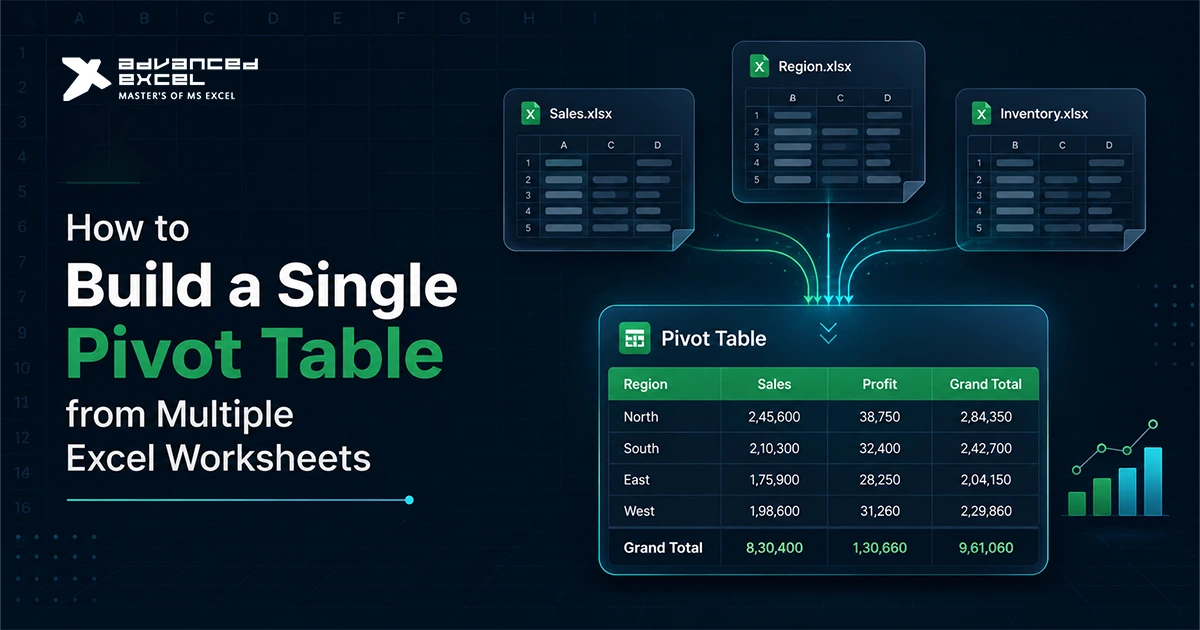
If you’ve ever worked with monthly sales reports, department-wise data, regional reports, or multiple Excel sheets containing similar information, you’ve probably faced this challenge:
“How do I create a Pivot Table using data from multiple worksheets?”
Many Excel users manually copy data from different sheets into one master worksheet before creating a Pivot Table. While this works for small datasets, it becomes time-consuming and difficult to manage when you’re dealing with large workbooks or frequently updated reports.
The good news is that Excel provides several ways to combine data from multiple worksheets and build a single Pivot Table for analysis.
Whether you’re managing sales data, financial records, inventory reports, employee information, or project tracking sheets, learning how to create a Pivot Table from multiple worksheets can save hours of manual work and improve reporting accuracy.
In this guide, we’ll walk through methods, best practices, and common mistakes to avoid when combining data from multiple Excel worksheets into a single powerful Pivot Table.
Why Use a Single Pivot Table for Multiple Worksheets?
Before jumping into the steps, it’s important to understand why this approach is useful.
Many businesses organize data in separate worksheets, such as:
- January Sales
- February Sales
- March Sales
- North Region
- South Region
- East Region
- West Region
While keeping data separated may make sense operationally, analyzing performance across all sheets becomes difficult.
A single Pivot Table allows you to:
- Consolidate data quickly
- Create summary reports
- Compare performance across periods
- Analyze trends
- Build dashboards
- Reduce manual calculations
Instead of reviewing multiple worksheets individually, you get one centralized reporting view.
When Should You Create a Pivot Table from Multiple Worksheets?
This technique is particularly useful when:
- Data is spread across multiple tabs
- Worksheets follow the same structure
- Monthly reports need consolidation
- Regional data needs comparison
- Departmental reports need aggregation
- Multiple teams submit similar reports
For example:
If every monthly sales sheet contains:
| Date | Product | Sales | Region |
|---|
Then Excel can combine and analyze all the data together.
Method 1: Using Power Query (Recommended)
For modern versions of Excel, Power Query is by far the best method.
It is faster, more flexible, and easier to update when new data is added.
Why Power Query?
Power Query allows you to:
- Merge worksheets automatically
- Clean data
- Remove duplicates
- Transform datasets
- Refresh reports instantly
Most Excel professionals now use Power Query instead of manual consolidation.
Step 1: Organize Your Worksheets
Before importing data, ensure:
- All worksheets have identical column headers
- Data formats are consistent
- No completely blank rows exist
- Sheet structures match
Example:
January Sheet
| Date | Product | Sales |
| 01-Jan | Laptop | 5000 |
February Sheet
| Date | Product | Sales |
| 01-Feb | Laptop | 6500 |
Consistency is critical.
Step 2: Convert Data to Excel Tables
Select each dataset.
Press:
Ctrl + T
This converts the range into an Excel Table.
Give each table a meaningful name, such as:
- Sales_January
- Sales_February
- Sales_March
This makes data management much easier later.
Step 3: Load Tables into Power Query
Go to:
Data? Get Data? From Other Sources? Blank Query
Or:
Data? From Table/Range
for each table.
Power Query Editor will open.
Step 4: Append Queries
Inside Power Query:
- Click Home
- Select Append Queries
- Choose Multiple Tables
- Select all worksheets
Power Query combines all records into a single dataset.
Now your monthly data exists in one consolidated table.
Step 5: Load Data Back into Excel
Click:
Close & Load
Choose:
- Table
- Pivot Table Report
Depending on your reporting needs.
Step 6: Create the Pivot Table
Select the combined dataset.
Go to:
Insert? Pivot Table
Choose where you want the report.
Excel creates a single Pivot Table using data from all worksheets.
Now you can analyze:
- Total sales
- Product performance
- Regional performance
- Monthly trends
- Revenue summaries
all from one report.
Method 2: Using the PivotTable and PivotChart Wizard
Many Excel users don’t know this older feature still exists.
It allows data consolidation from multiple worksheet ranges.
Step 1: Open PivotTable Wizard
Press:
Alt + D + P
This opens the PivotTable and PivotChart Wizard.
Step 2: Select Multiple Consolidation Ranges
Choose:
Multiple Consolidation Ranges
Click Next.
Step 3: Create a Single Page Field
Select:
I Will Create the Page Fields
Click Next.
Step 4: Add Worksheet Ranges
Select each worksheet range individually.
Click Add.
Repeat until all worksheets are included.
Step 5: Finish the Wizard
Choose where the Pivot Table should be placed.
Click Finish.
Excel creates a consolidated Pivot Table.
Limitations of Multiple Consolidation Ranges
Although this method works, it has some drawbacks.
You may lose:
- Detailed field names
- Advanced filtering
- Flexible grouping
This is why Power Query is generally preferred today.
Method 3: Using the Data Model
If you’re working with large datasets, Excel’s Data Model is another excellent option.
Data Model allows relationships between multiple tables without physically merging data.
This is especially useful for:
- Financial reporting
- Business intelligence
- Dashboard creation
- Advanced analytics
How the Data Model Works
Instead of combining tables manually:
- Tables remain separate
- Relationships connect datasets
- Pivot Tables analyze connected data
This approach is similar to how databases operate.
Common Mistakes to Avoid
When creating a Pivot Table from multiple worksheets, users often encounter issues.
Let’s look at the most common ones.
Inconsistent Column Headers
This is the biggest problem.
Example:
Sheet 1:
Sales Amount
Sheet 2:
Total Sales
Power Query treats them as different fields.
Always use identical headers.
Different Data Formats
Example:
One sheet stores dates as text.
Another store dates properly.
This can cause grouping and reporting issues.
Ensure all formats match.
Blank Rows
Blank rows can interrupt data loading and create reporting errors.
Remove unnecessary empty rows before importing data.
Duplicate Records
If the same data exists on multiple sheets, your Pivot Table may double-count values.
Review source data carefully before consolidation.
Benefits of Using Power Query with Pivot Tables
Power Query has become the preferred solution because it offers several advantages.
Automatic Refresh
When new records are added, simply click:
Refresh
Your Pivot Table updates automatically.
Faster Reporting
No need to manually combine worksheets every month.
Improved Accuracy
Reduces human errors during data consolidation.
Better Scalability
Works efficiently with thousands of records.
Real-World Example
Imagine a company receives monthly sales reports from different regions:
- Delhi
- Mumbai
- Bangalore
- Chennai
Each office submits data in separate worksheets.
Instead of creating four separate reports, Power Query can combine all regional data into one dataset.
A single Pivot Table can then answer questions like:
- Which region generated the highest revenue?
- Which product sold the most?
- What were the monthly sales trends?
- Which sales representative performed best?
This saves time and provides more meaningful insights.
Best Practices for Creating Pivot Tables from Multiple Worksheets
To get the best results:
- Maintain consistent worksheet structures
- Use Excel Tables
- Avoid merged cells
- Keep column names standardized
- Remove blank rows
- Use Power Query whenever possible
- Refresh reports regularly
- Validate source data before analysis
Following these practices makes reporting easier and more reliable.
Final Thoughts
Creating a single Pivot Table from multiple Excel worksheets is one of the most useful skills for anyone working with large datasets or recurring reports.
While Excel offers several methods, Power Query has become the preferred approach because it simplifies data consolidation, improves accuracy, and supports automated refreshes.
Instead of manually copying data between worksheets every month, you can build a scalable reporting process that saves time and reduces errors.
Whether you’re analyzing sales performance, financial reports, inventory data, or operational metrics, combining multiple worksheets into one Pivot Table can dramatically improve your reporting workflow and decision-making process.