
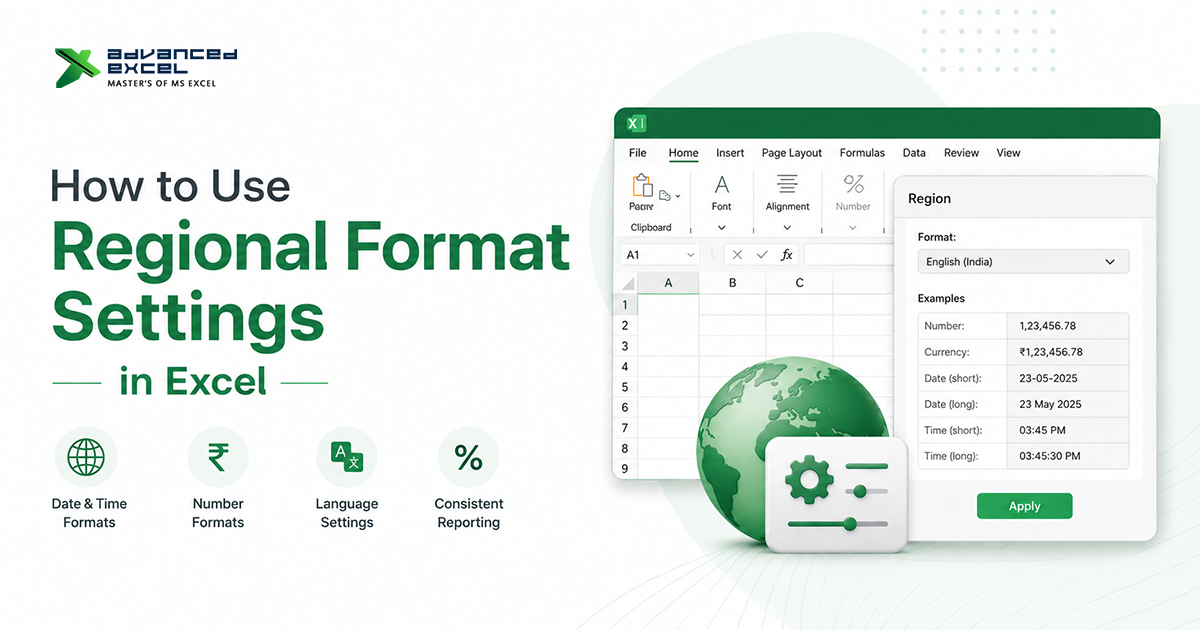
If you’ve ever opened an Excel workbook and noticed that dates, currency symbols, decimal separators, or number formats appear differently than expected, the reason is usually Excel regional format settings.
These settings determine how Excel displays dates, times, numbers, currency, percentages, and other locale-specific formats. Understanding regional settings is essential when working with international data, sharing files across countries, or building automated Excel reports.
In this guide, you’ll learn how Excel regional format settings work, how to change them, and how they affect formulas, Power Query, VBA, and data imports.
What Are Excel Regional Format Settings?
Excel regional format settings control how information is displayed according to a country’s or region’s standards.
These settings influence:
- Date formats
- Time formats
- Decimal separators
- Thousands separators
- Currency symbols
- Percentage formats
- List separators
- Calendar formats
For example:
| Region | Date Format | Decimal Separator | Thousands Separator |
|---|---|---|---|
| United States | MM/DD/YYYY | . | , |
| United Kingdom | DD/MM/YYYY | . | , |
| Germany | DD.MM.YYYY | , | . |
| France | DD/MM/YYYY | , | Space |
The same Excel workbook may display different formats depending on the user’s regional settings.
Why Regional Settings Matter in Excel
Regional settings become especially important when:
- Working with international clients
- Importing CSV files
- Using Power Query
- Sharing reports globally
- Automating dashboards
- Creating VBA macros
- Processing financial data
Incorrect regional settings can lead to:
- Wrong date interpretation
- Formula errors
- Currency mismatches
- Import failures
- Incorrect calculations
How Excel Uses Regional Settings
Excel primarily gets regional information from your operating system.
That includes:
- Date format
- Currency
- Decimal separator
- Time format
- Language
When Excel starts, it automatically reads these settings and applies them unless you’ve customized them inside Excel.
How to Check Regional Format Settings in Excel
Follow these steps:
- Open Excel.
- Click File.
- Select Options.
- Click Advanced.
- Scroll to the Editing options section.
- Check whether Use system separators is enabled.
If enabled, Excel uses your Windows or macOS regional settings.
If disabled, you can specify your own:
- Decimal separator
- Thousands separator
How to Change Regional Settings in Windows
If you want Excel to display dates and numbers differently, update your Windows regional settings.
Windows 11
- Open Settings
- Select Time & Language
- Click Language & Region
- Choose your preferred country or region
- Click Regional Format
- Select the desired format
Restart Excel after making changes.
How to Change Regional Settings in macOS
- Open System Settings
- Click General
- Select Language & Region
- Choose your preferred region
- Restart Excel
Excel will automatically adopt the new regional settings.
Understanding Date Formats
One of the most common issues involves dates.
Consider this example:
05/07/2025
Depending on regional settings, Excel may interpret it as:
- May 7, 2025
- July 5, 2025
This can cause serious reporting errors.
Always verify date formats before importing or sharing data.
Decimal and Thousands Separators
Different countries use different number separators.
Example:
US Format
1,234.56German Format
1.234,56If Excel expects one format but receives another, numbers may be stored as text.
How to Customize Decimal Separators
Instead of changing Windows settings, you can customize separators in Excel.
Go to:
File ? Options ? Advanced
Uncheck:
Use system separators
Then enter your own:
Decimal separator:
.Thousands separator:
,or
Decimal:
,Thousands:
.Currency Formatting
Regional settings automatically control:
- Currency symbol
- Currency placement
- Decimal digits
- Negative number formatting
Examples:
United States
$1,250.50United Kingdom
£1,250.50Germany
1.250,50 €Regional Settings and CSV Files
CSV files often create formatting problems.
For example:
US CSV
John,1250.50European CSV
John;1250,50Notice that some regions use semicolons instead of commas because commas are reserved as decimal separators.
Always verify your regional settings before importing CSV files.
Regional Settings and Excel Formulas
Some formula separators change with regional settings.
English (US)
=SUM(A1,B1)Many European countries
=SUM(A1;B1)This happens because commas are already used as decimal separators.
Regional Settings in Power Query
Power Query can detect locale-specific data.
While importing data:
- Select the column.
- Choose Data Type.
- Click Using Locale.
- Select the appropriate country.
- Import the data.
This avoids incorrect date and number conversions.
Regional Settings and VBA
VBA also follows system regional settings.
For example:
Date = "01/05/2025"Depending on the user’s locale, VBA may interpret this date differently.
A better approach is:
DateSerial(2025,5,1)This avoids ambiguity.
Best Practices for International Excel Workbooks
To create reliable workbooks:
- Use ISO date format (YYYY-MM-DD) where possible.
- Avoid manually typing dates in ambiguous formats.
- Store raw data separately from formatted reports.
- Test workbooks under different regional settings.
- Use Power Query locale options when importing data.
- Document expected regional settings for users.
- Avoid hard-coded currency symbols in formulas.
- Use structured tables for imported datasets.
Common Problems and Solutions
Dates Are Displaying Incorrectly
Cause: Different regional date formats.
Solution: Change regional settings or convert dates using Power Query.
Numbers Are Stored as Text
Cause: Decimal separator mismatch.
Solution: Update decimal separators or use Text to Columns with the correct locale.
CSV Imports Incorrectly
Cause: Different list separators.
Solution: Import using the correct locale instead of opening the CSV directly.
Formulas Show Errors
Cause: Formula separator mismatch.
Solution: Replace commas with semicolons (or vice versa) based on your regional settings.
Frequently Asked Questions (FAQs)
Does Excel have its own regional settings?
Excel primarily follows your operating system’s regional settings. However, you can customize decimal and thousands separators within Excel.
Why do my dates change after opening a workbook?
Excel interprets dates according to the regional format configured on your computer. Different locales can display the same value differently.
Can I use different regional settings for one workbook?
Not entirely. While you can customize separators, most regional formatting is controlled by the operating system.
Why are my formulas using semicolons instead of commas?
Many European locales use commas as decimal separators, so Excel uses semicolons to separate function arguments.
Do regional settings affect Power Query?
Yes. Power Query allows you to specify a locale during data import, helping ensure dates and numbers are interpreted correctly.
Final Thoughts
Understanding Excel regional format settings is essential for anyone who works with global datasets, financial reports, dashboards, or automated workflows. Small differences in date formats, decimal separators, and currency symbols can lead to major reporting errors if left unchecked.
By learning how Excel applies regional settings—and how to adjust them when needed—you can build more reliable workbooks, simplify international collaboration, and create automation that works consistently across different countries and regions.
Whether you’re importing data, using Power Query, writing VBA code, or sharing reports with teams worldwide, mastering Excel regional format settings will help you avoid formatting issues and improve the accuracy of your spreadsheets.